7 Claude Connectors Every Marketer Should Install
Claude on its own is a good writer with no access to your work. It can't see your campaign brief, your inbox, last month's numbers or the competitor page you're trying to beat. Connectors fix that. Each one is a small bridge (built on the Model Context Protocol) that lets Claude read from, and sometimes act in, a tool you already use.
Most marketers stop at one or two. It gets interesting when Claude can move across several in one conversation: read the brief in Drive, check what a competitor is promising, draft the email, put it on the calendar in Notion, and pull the CRM list it goes to.
Below are the seven I'd install first, in roughly the order a campaign moves. All of them work on claude.ai, and most also work in the desktop and phone apps once connected.
How to add a connector
There are two routes, and they take about a minute each:
- From the directory. On claude.ai go to Customize → Connectors, browse, and press Connect. You'll be sent to the tool's own sign-in page to approve access.
- As a custom connector. Some tools aren't in the directory yet. For those, choose Add custom connector, paste the URL the tool gives you, and sign in the same way.
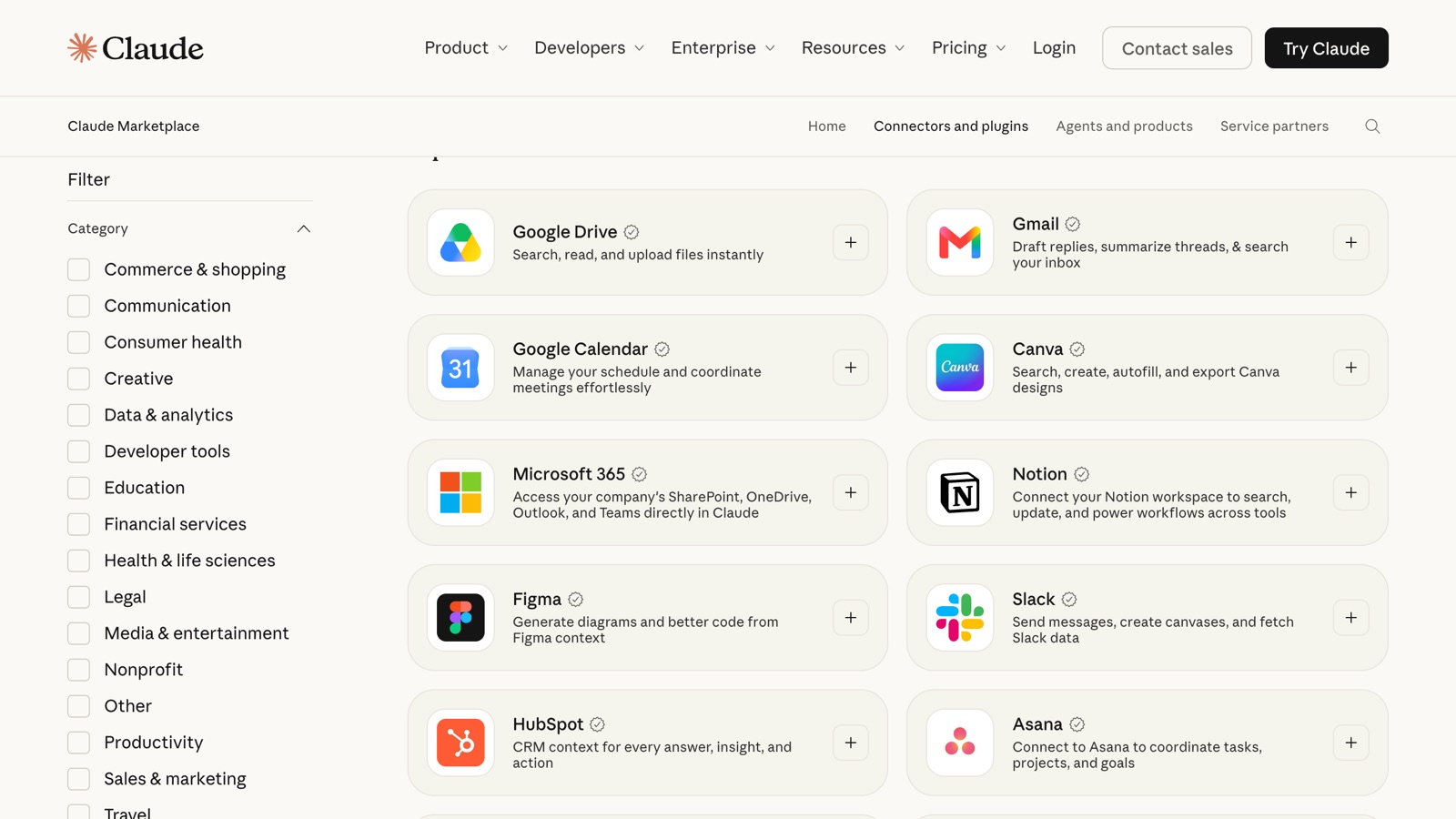
Once connected, open a chat, click the + or tools button, and make sure the connector is switched on for that chat. Turning off the ones you don't need keeps Claude from calling the wrong tool.
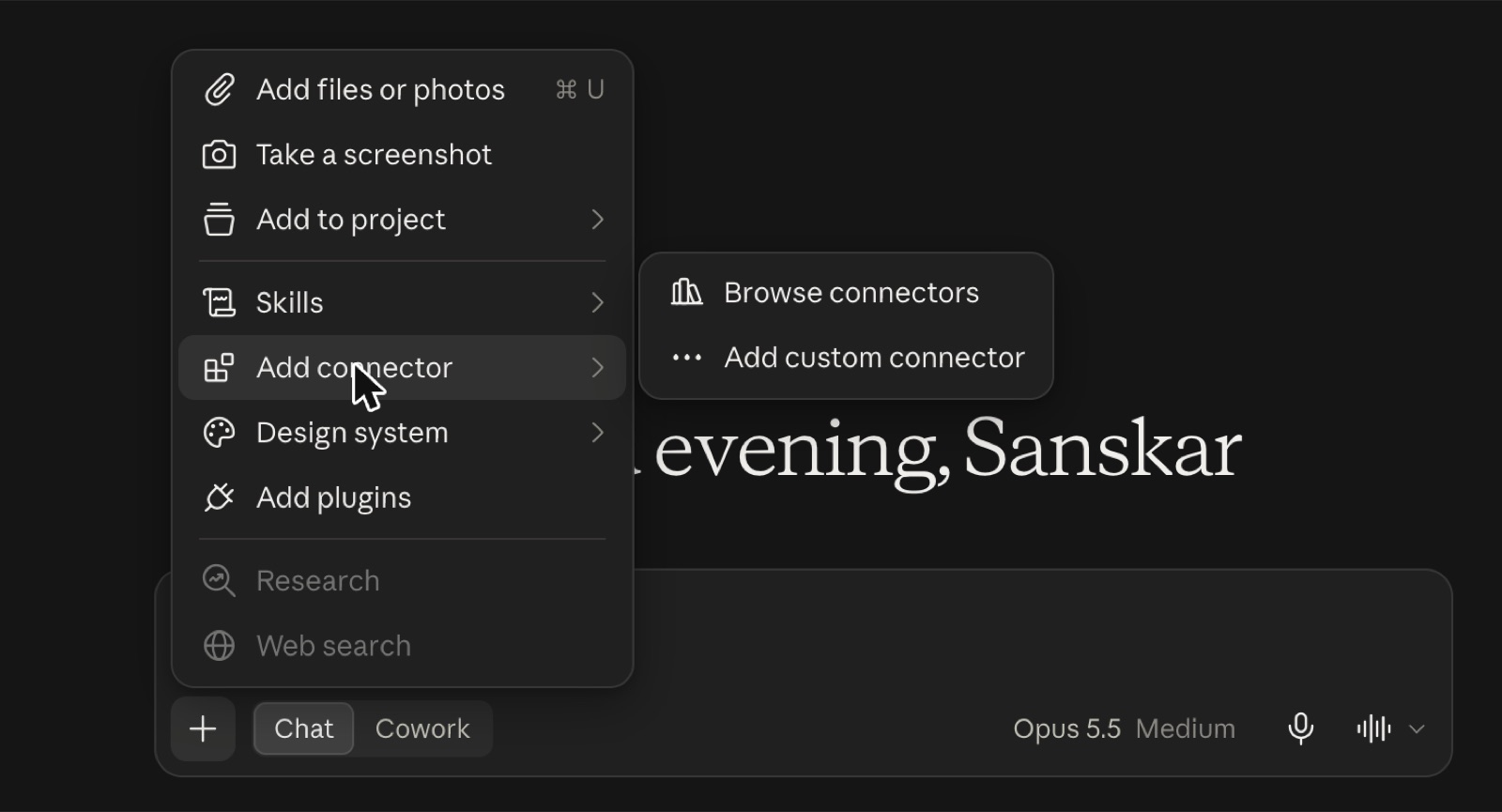
1. BrowsingBee: let Claude read the live web
Every campaign starts with research: what competitors are charging, what their landing pages promise, what a review site says about your category. Claude can't open a URL by default, and copy-pasting ten pages into a chat gets old fast.
BrowsingBee is a remote browser connector. It opens pages in a real Chrome on our servers and hands Claude the readable text, so JavaScript-heavy sites work too. It also searches the web, takes screenshots at desktop or phone width, lists every link on a page and reads public PDFs up to 50 pages. Setup is one link plus a Google sign-in, and the free plan covers 300 page loads a month. The steps are on the Claude setup page.
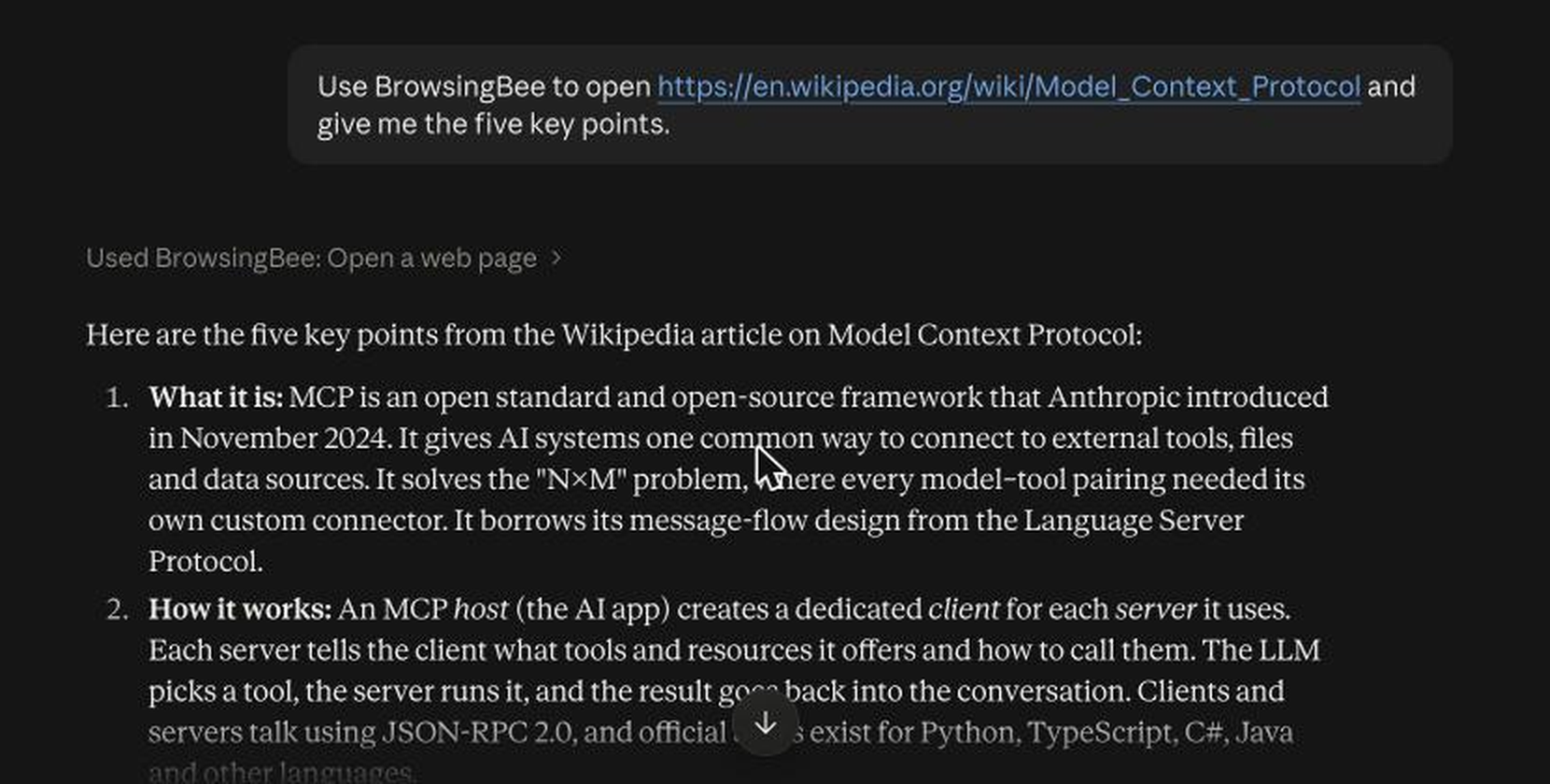
Prompts worth trying:
- "Open the pricing pages of these three competitors and give me a table of plans, prices and what each plan limits."
- "Search for reviews of [product] from the last six months and summarise the top five complaints."
- "Screenshot our landing page and theirs at phone width and tell me which one makes the offer clearer above the fold."
It's read only. It won't log in to sites or fill forms, and for a research tool I think that's the right call.
2. Google Drive: briefs, decks and reports
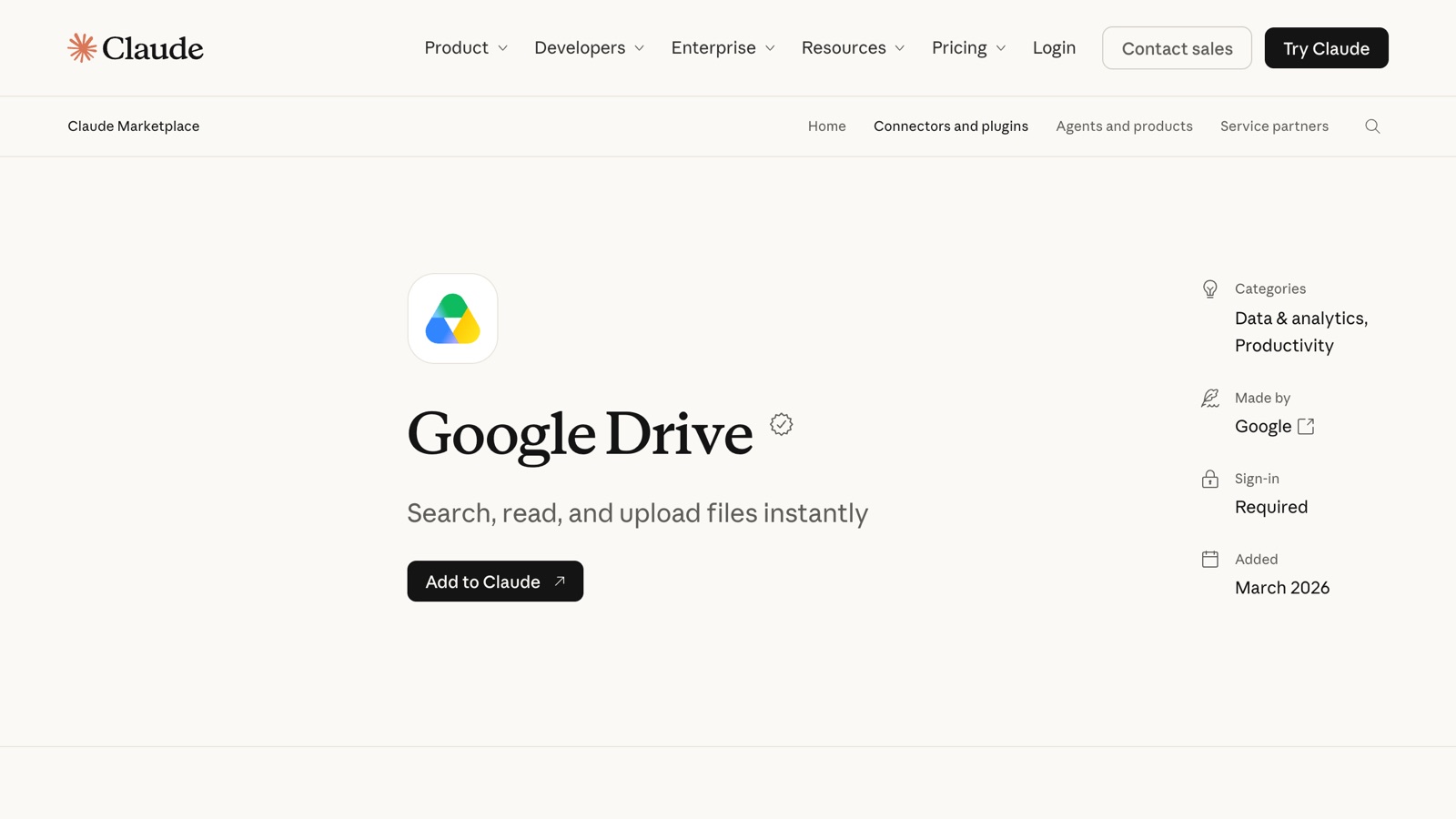
Most marketing teams live in Drive. The Google Drive connector lets Claude search, read and upload files, so you can point it at a brief or last quarter's report instead of pasting it in.
A useful first test: "Find the Q3 campaign brief in Drive and list every claim it makes that we'd need proof for." Claude reads the file and comes back with a checklist you'd otherwise build by hand.
Drive also covers spreadsheets at the read level: Claude can pull a CSV export or a Sheet and analyse it. If you want the AI to work inside the sheet itself, row by row, a Sheets add-on is the better fit. With SheetAI for bulk work inside Google Sheets, a formula like =SHEETAI("Write a 90-character ad headline for " & A2) dragged down 200 rows gives you 200 headlines in one column. Claude in chat is better for thinking about the data; a formula is better for producing a lot of it.
3. Gmail: the inbox you're behind on
The Gmail connector can search your inbox, summarise threads and draft replies. For marketers the value is less about writing emails and more about finding things: the agency's last invoice, the influencer who agreed to a rate in August, the feedback a client sent three weeks ago.
Try:
- "Find every email from [agency] in the last 30 days and list open questions they're waiting on me for."
- "Summarise the thread about the October launch and draft a reply confirming the new date."
Drafts land in your Drafts folder. Read them before you send them, especially anything with a number or a date in it.
4. Notion: the content calendar
If your calendar, briefs or wiki live in Notion, the connector lets Claude search pages and create or update them. That turns a planning chat into an actual plan.
The workflow I'd copy: ask Claude to draft four weeks of posts from a single brief, then "add each post to the Content Calendar database with a date, channel and status of Draft." You review in Notion, where your team already works, instead of copying from the chat window.
Keep the database simple (date, channel, status, owner) and Claude will fill it reliably. Very custom properties or nested relations are where it starts to guess.
5. Canva: on-brand visuals without the back-and-forth
The Canva connector can search your designs, create new ones, autofill templates and export them. If your brand kit and templates are already in Canva, this is the fastest way to go from copy to a finished asset.
A good pattern: write the copy with Claude first, agree on it, then say "Use our Instagram carousel template in Canva and fill it with these five slides." You get an editable design in your Canva account, not a flattened image you can't change.
It won't replace a designer for a launch campaign. It's very good for the weekly volume work: event posts, quote cards, resized versions of an existing asset.
6. HubSpot: CRM context for every answer
The HubSpot connector gives Claude access to contacts, companies and deals. For marketing, that means you can ask questions you'd normally need a report builder for.
Examples:
- "How many contacts from the September webinar became deals, and what stage are they in now?"
- "List companies in our CRM that opened the last two newsletters but have no open deal."
The second one is a ready-made list for a sales follow-up. Check the counts against HubSpot once before you trust them for a report; the connector reads what your permissions allow, and a missing property can quietly shrink a number.
7. A Meta ads connector: launch, check and pause from the chat
Paid social is where many marketers still switch tabs the most. Ads Manager is powerful but slow for simple questions like "which ad set spent the most yesterday and what did it get for it?"
The one I use is TalkToAds for Meta ads, which goes in as a custom connector rather than from the directory. You add https://talktoads.com/mcp as a custom connector, sign in with Facebook and pick which ad accounts to share. After that Claude can report on performance, boost an Instagram post, adjust budgets, search interests for targeting, audit the account and create campaigns across Facebook and Instagram.
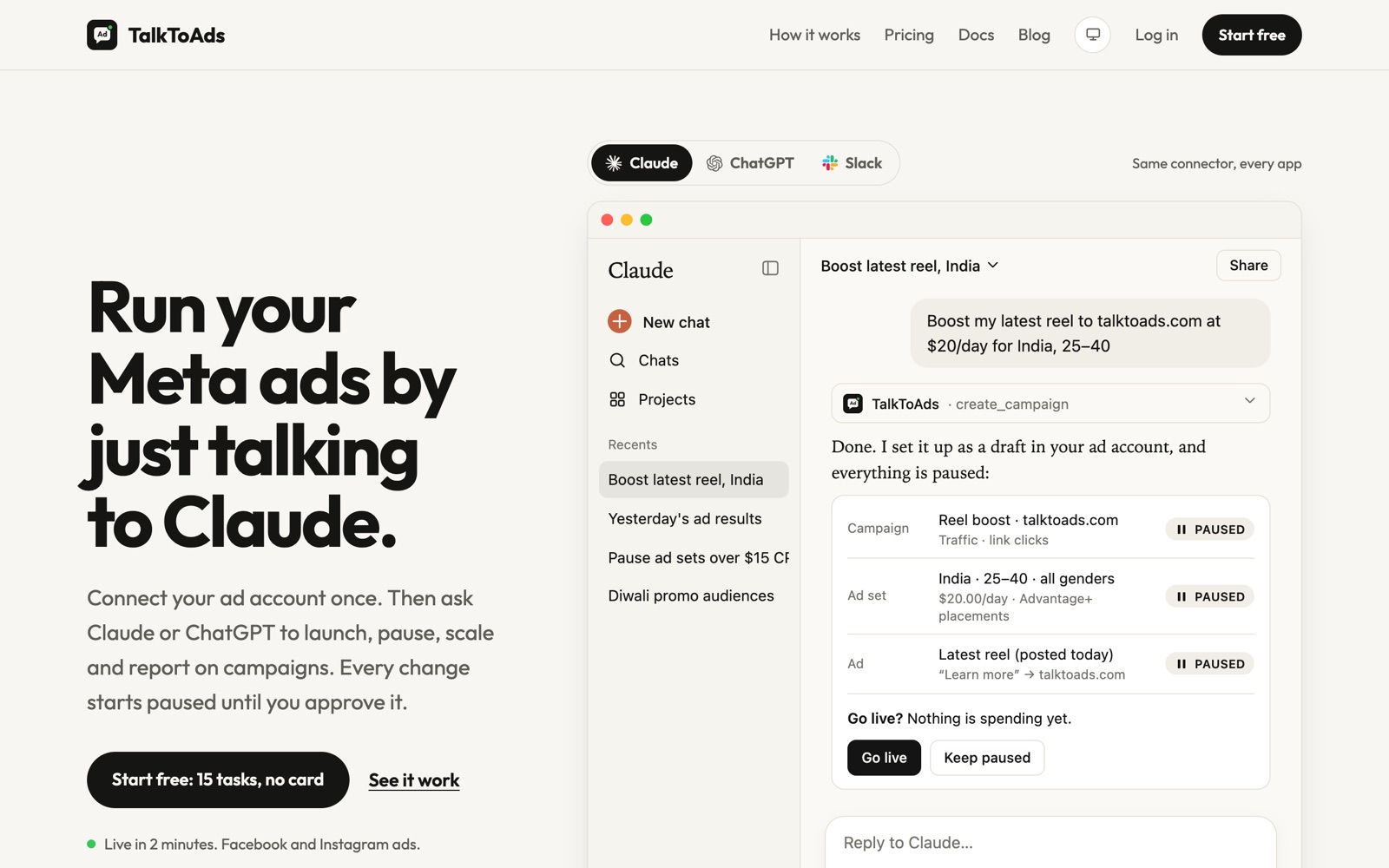
I'd only let a chat touch a live ad account with guardrails, and it has two. Everything it creates starts paused, so nothing spends until you approve it. And you can set a spend cap on any single daily budget, which stops a typo from turning $50 into $500. The free plan covers 15 tasks a month, which is enough to see whether chat-driven reporting fits how you work.
Prompts to start with:
- "Show me spend, results and cost per result for every active ad set in the last 7 days, sorted by cost per result."
- "Audit this ad account and list anything wasting money: overlapping audiences, ads with frequency above 4, ad sets with no conversions after $100."
- "Pause the two worst ad sets from that list."
I wrote up my own setup and daily routine in a hands-on guide to running Meta ads with Claude if you want the long version.
Putting them together: one campaign, one chat
This is where it pays off. Here's week one of a new product launch, done mostly in one conversation:
- Research with BrowsingBee: "Open the landing pages of our three closest competitors and list the main promise, price and call to action of each."
- Check the brief in Drive: "Read our launch brief in Drive. Where does our positioning overlap with theirs, and where is it different?"
- Claude drafts three headline angles based on the differences. You pick one.
- Make the visuals in Canva: "Fill our ad template with angle two, in square and story sizes."
- Schedule it in Notion: "Add the launch email, three organic posts and the ad start date to the Content Calendar."
- Size the audience in HubSpot: "How many contacts match the segment 'trial users, no purchase, last 60 days'?"
- Set up the ads: "Create a campaign for that angle at $30 a day with the new creative. Leave it paused." You review in Ads Manager, then approve.
Seven tools, and what used to be an afternoon of tab switching is now one conversation you can scroll back through.
A few rules that keep this sane
Connect only what you actually use. Every connector adds tools Claude can pick from, and five you use daily beat fifteen you forgot about.
Read everything before it leaves the building. Drafts, posts and campaigns should pass your eyes first, which is why I prefer tools that default to drafts or paused states.
The first time Claude reports a metric from HubSpot or your ads account, compare it with the native dashboard. Once it matches a couple of times, you can stop checking every number.
Keep one chat per campaign. Context from one client bleeding into another is the most common mistake I see.
When a tool asks what to share (which ad accounts, which Drive folders), give it the minimum. You can widen it later.
If you're starting from zero, add the research connector and Google Drive first. They're read-mostly, low risk, and you'll feel the difference in your first chat. Then add the ones that act (email drafts, calendar, ads) once you trust the workflow. BrowsingBee works the same way in ChatGPT if part of your team lives there; the ChatGPT steps are short.